How to Block Website on Edge?
Privacy Focused Website Blocker (by Avrodh.com) can be used to block websites on Microsoft Edge browser.
Install the browser extension
First, you need to install our browser extension.
Available for Microsoft Edge.
Once you have installed the browser extension, you can find it in the "Extensions" menu of your browser.Open the settings page
Once you have installed our browser extension, open the settings page. You can access it by clicking the extension icon in your browser's extensions menu.
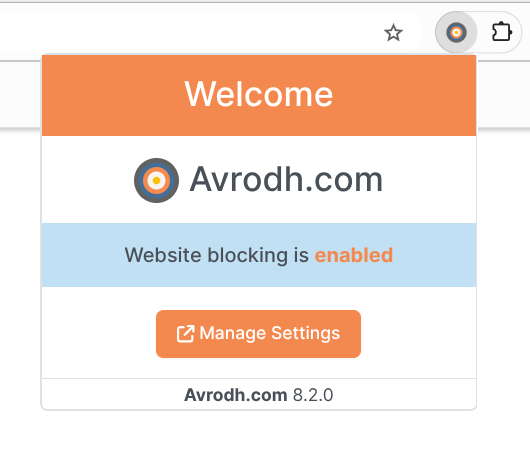
Blocking a website on Edge with the block list
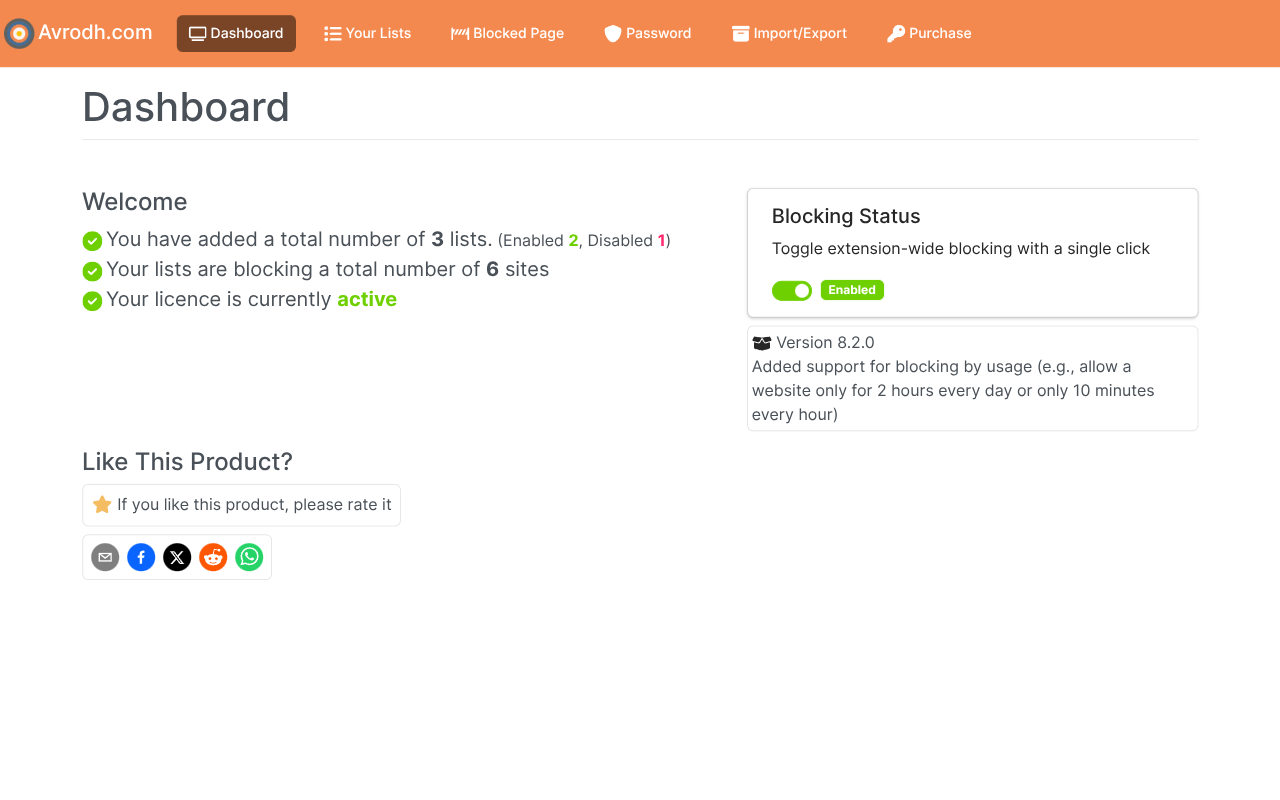
- When you open the extension settings, you will see the dashboard interface. Click on the Your Lists menu to start creating a website block list.
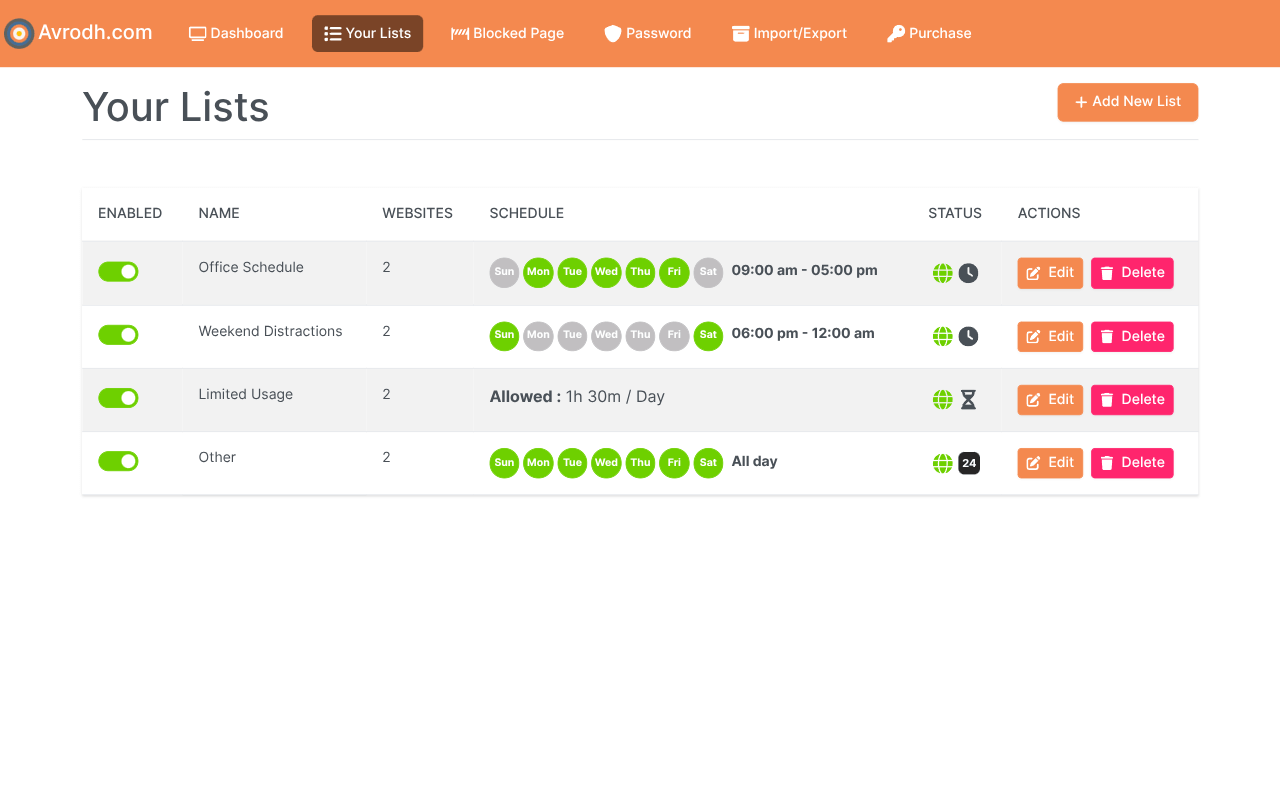
- On the Your Lists screen, click the Add New List button on the top-right corner.
- Now, the Create List interface will open, where you can create a new list with various block settings.
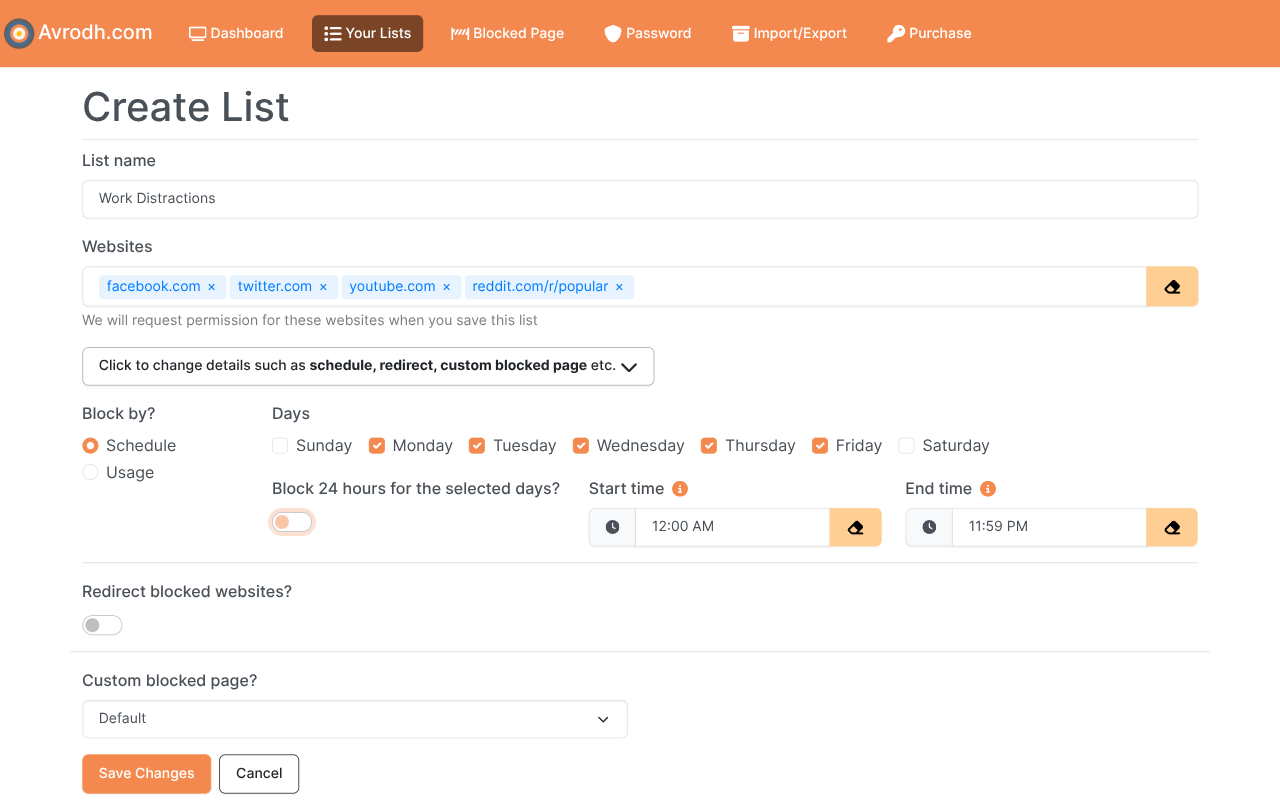
- Make a new list if one hasn't already been created. Otherwise, you can edit any existing list.
- Enter the website you want to block in the edit interface, for example, example.com or https://example.com.
- Save the list by clicking the save button.
Website is now blocked on Edge
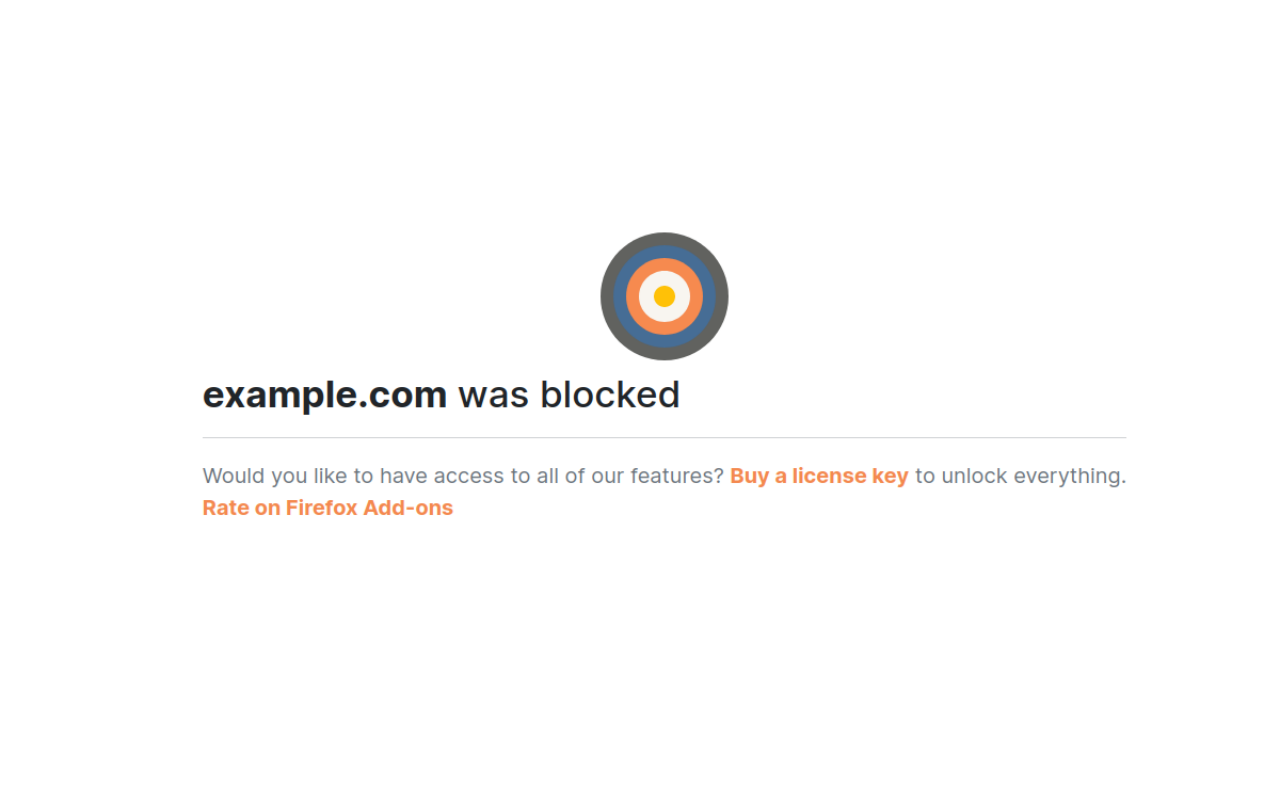
Open a new tab in Microsoft Edge and visit the blocked site. You’ll see it won’t load, and Edge will display a blocked page instead.